CSS Selectors
Hello! This is my first Hashnode post. Let's look at how to select objects in CSS.
Topics covered in this post:
- Basic selectors
- Grouping selectors
- Combinators
- Pseudo
1. Basic selectors
Universal selector
The CSS universal selector (*) matches elements of any type.
HTML
<!DOCTYPE html>
<html lang="en">
<head>
    <meta charset="UTF-8">
    <meta http-equiv="X-UA-Compatible" content="IE=edge">
    <meta name="viewport" content="width=device-width, initial-scale=1.0">
    <link rel="stylesheet" href="./style.css">
    <title>Document</title>
</head>
<body>
    <div class="mainContainer">
        <h1 class="heading">CSS Secectors</h1>
        <p class="description">We are here to learn about CSS selectors.</p>
    </div>
</body>
</html>
CSS
* {
    color: red;
    background-color: blue;
}
Output

Type selectors
It selects element by its name.
HTML
<!DOCTYPE html>
<html lang="en">
<head>
    <meta charset="UTF-8">
    <meta http-equiv="X-UA-Compatible" content="IE=edge">
    <meta name="viewport" content="width=device-width, initial-scale=1.0">
    <link rel="stylesheet" href="./style.css">
    <title>Document</title>
</head>
<body>
    <div class="mainContainer">
        <h1 class="heading">CSS Secectors</h1>
        <p class="description">We are here to learn about CSS selectors.</p>
    </div>
</body>
</html>
CSS
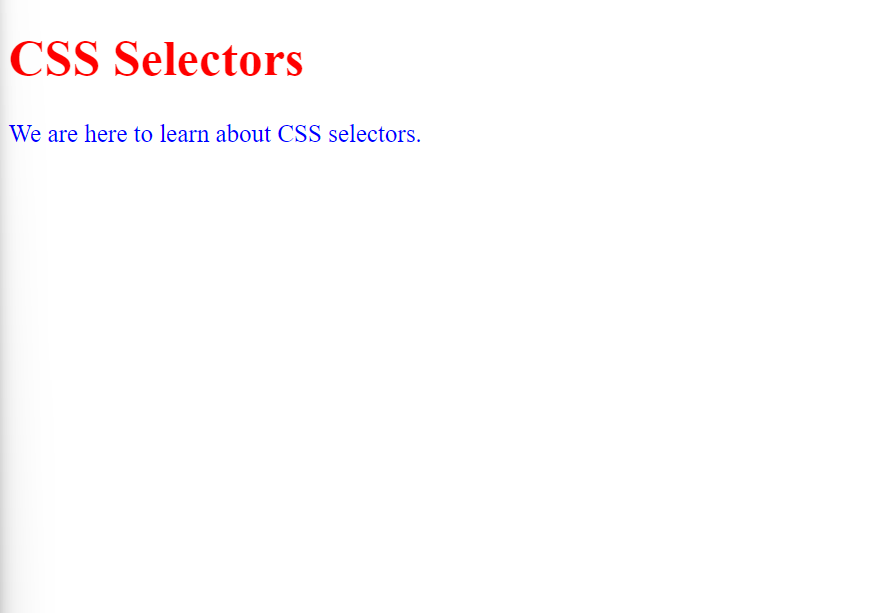
h1 {
  color: red;
}

p {
  color: blue;
}
Output
Class selectors
It selects element by its class name. To select elements using class name we need to use.before class name.
HTML
<!DOCTYPE html>
<html lang="en">
<head>
    <meta charset="UTF-8">
    <meta http-equiv="X-UA-Compatible" content="IE=edge">
    <meta name="viewport" content="width=device-width, initial-scale=1.0">
    <link rel="stylesheet" href="./style.css">
    <title>Document</title>
</head>
<body>
    <div class="mainContainer">
        <h1 class="heading">CSS Secectors</h1>
        <p class="description">We are here to learn about CSS selectors.</p>
    </div>
</body>
</html>
CSS
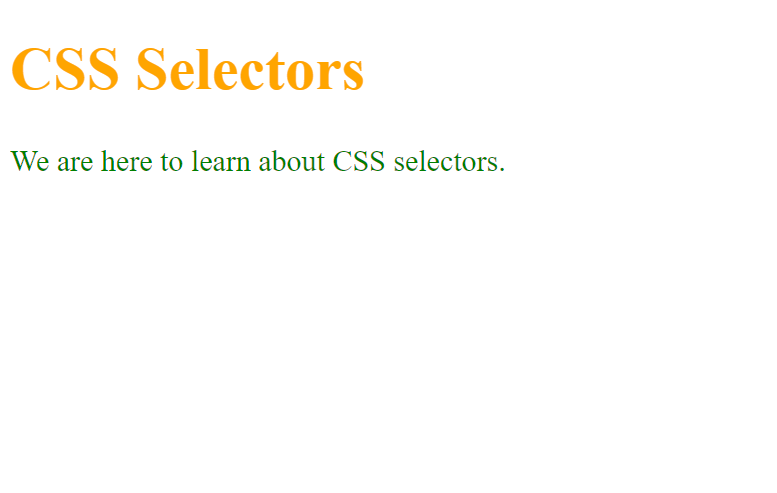
.heading {
  color: orange;
}

.description {
  color: green;
}
Output
ID selectors
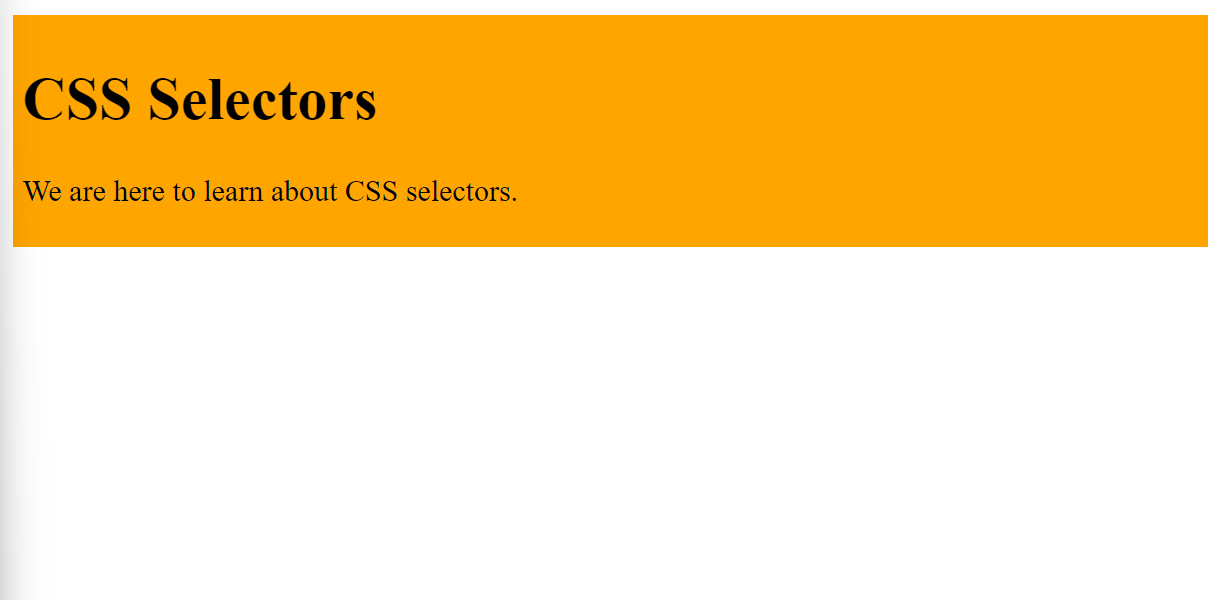
It selects element by its value of ID attribute. To select elements using ID we need to use#before class name.
HTML
<!DOCTYPE html>
<html lang="en">
<head>
    <meta charset="UTF-8">
    <meta http-equiv="X-UA-Compatible" content="IE=edge">
    <meta name="viewport" content="width=device-width, initial-scale=1.0">
    <link rel="stylesheet" href="./style.css">
    <title>Document</title>
</head>
<body>
    <div id="mainContainer">
        <h1 class="heading">CSS Secectors</h1>
        <p class="description">We are here to learn about CSS selectors.</p>
    </div>
</body>
</html>
CSS
#mainContainer {
    background-color: orange;
    padding: 5px;
}
Output
Attribute selectors
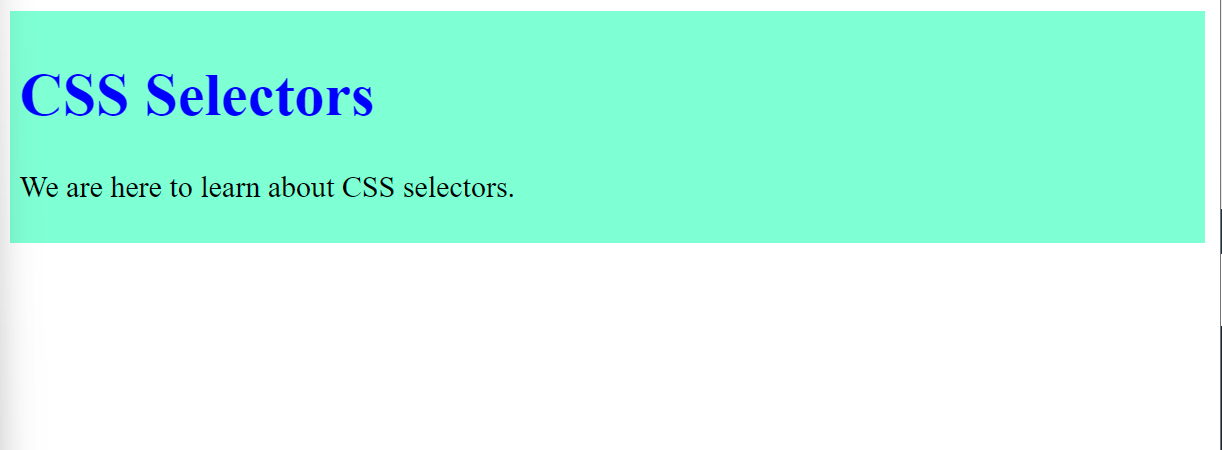
The attribute selectors selects element based on the presence or value of a given attribute. To select elements using attribute selectors we need to write element name followed by attribute or attribute and it's value inside[].
HTML
<!DOCTYPE html>
<html lang="en">
<head>
    <meta charset="UTF-8">
    <meta http-equiv="X-UA-Compatible" content="IE=edge">
    <meta name="viewport" content="width=device-width, initial-scale=1.0">
    <link rel="stylesheet" href="./style.css">
    <title>Document</title>
</head>
<body>
    <div id="mainContainer" title="main">
        <h1 class="heading">CSS Selectors</h1>
        <p class="description">We are here to learn about CSS selectors.</p>
    </div>
</body>
</html>
CSS
div[title] {
    background-color: aquamarine;
    padding: 5px;
}

h1[class="heading"] {
    color: blue;
}
Output
2. Grouping selectors
Selector List
The CSS selector list (,) selects all the matching nodes.
HTML
<!DOCTYPE html>
<html lang="en">
<head>
    <meta charset="UTF-8">
    <meta http-equiv="X-UA-Compatible" content="IE=edge">
    <meta name="viewport" content="width=device-width, initial-scale=1.0">
    <link rel="stylesheet" href="./style.css">
    <title>Document</title>
</head>
<body>
    <div class="mainContainer">
        <h1 class="heading">CSS Secectors</h1>
        <p class="description">We are here to learn about CSS selectors.</p>
    </div>
</body>
</html>
CSS
h1, p {
    color: red;
}
Output

3. Combinators
Descendant Selector
The descendent selector matches all elements that match the second selector that are contained within the first selector. It doesn't matter if it's an immediate child or a child's child. It is represented by single space between selectors.
HTML
<!DOCTYPE html>
<html lang="en">
<head>
    <meta charset="UTF-8">
    <meta http-equiv="X-UA-Compatible" content="IE=edge">
    <meta name="viewport" content="width=device-width, initial-scale=1.0">
    <link rel="stylesheet" href="./style.css">
    <title>Document</title>
</head>
<body>
    <div class="mainContainer">
        <h1 class="heading">CSS Secectors</h1>
        <p class="description">We are here to learn about CSS selectors.</p>
    </div>
</body>
</html>
CSS
div p {
    color: red;
}
Output

Child Selectors
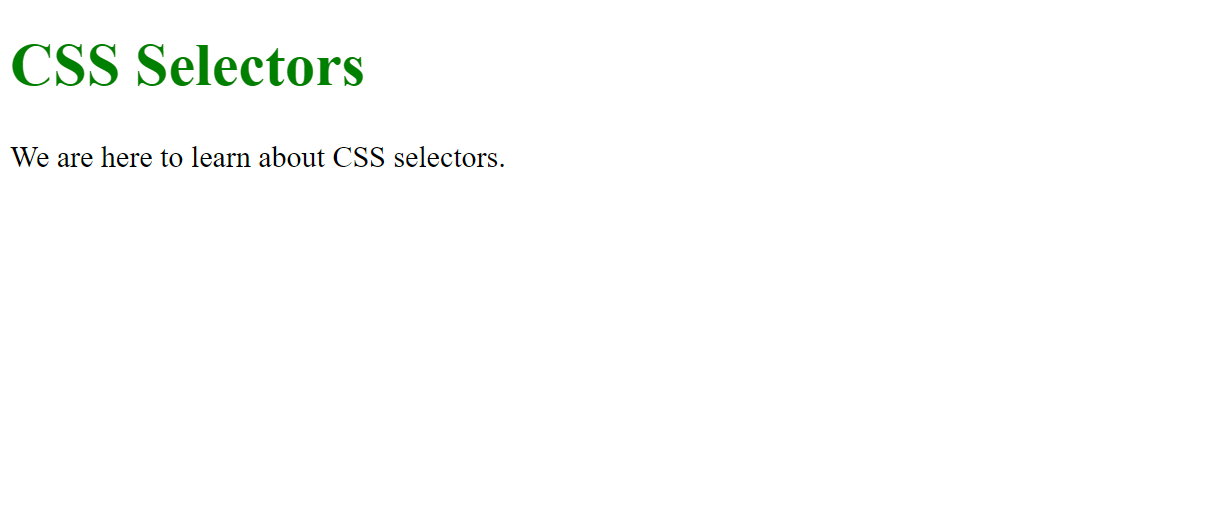
The child selectors pick all elements by the second selector that are direct children of elements matched by the first (>) separates the two CSS selectors.
HTML
<!DOCTYPE html>
<html lang="en">
<head>
    <meta charset="UTF-8">
    <meta http-equiv="X-UA-Compatible" content="IE=edge">
    <meta name="viewport" content="width=device-width, initial-scale=1.0">
    <link rel="stylesheet" href="./style.css">
    <title>Document</title>
</head>
<body>
    <div class="mainContainer">
        <h1 class="heading">CSS Secectors</h1>
        <p class="description">We are here to learn about CSS selectors.</p>
    </div>
</body>
</html>
CSS
div > h1 {
    color: green;
}
Output
General Sibling Selector
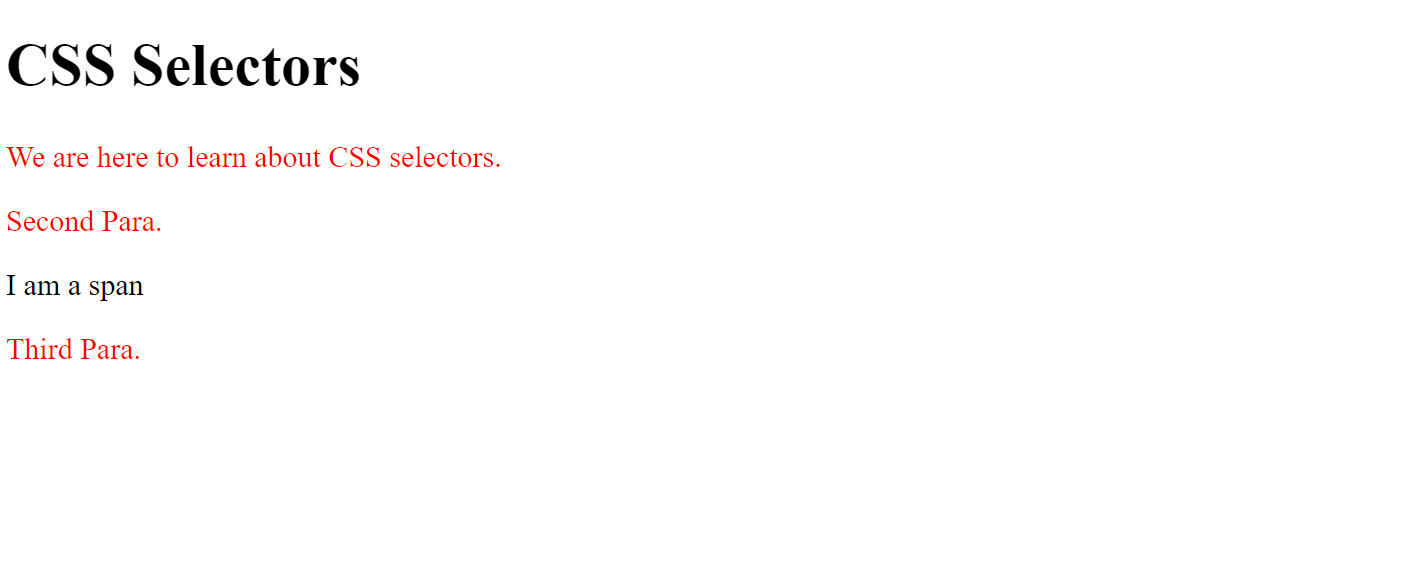
It chooses all elements that follow the initial element and are children of the same parent. We use~to separate the two elements.
HTML
<!DOCTYPE html>
<html lang="en">
<head>
    <meta charset="UTF-8">
    <meta http-equiv="X-UA-Compatible" content="IE=edge">
    <meta name="viewport" content="width=device-width, initial-scale=1.0">
    <link rel="stylesheet" href="./style.css">
    <title>Document</title>
</head>
<body>
    <div id="mainContainer" title="main">
        <h1 class="heading">CSS Selectors</h1>
        <p class="description">We are here to learn about CSS selectors.</p>
        <p class="description">Second Para.</p>
        <span>I am a span</span>
        <p class="description">Third Para.</p>
    </div>
</body>
</html>
CSS
h1 ~ p {
    color: red;
}
Output
Adjacent Sibling Selector
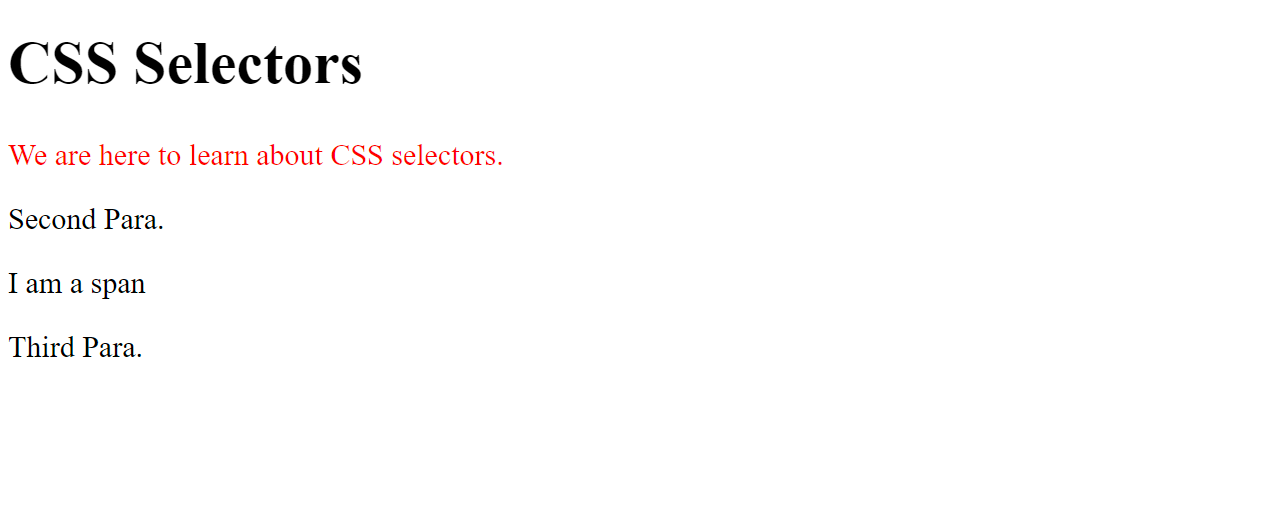
It selects the element which just after the first one. We use+to separate the two elements.
HTML
<!DOCTYPE html>
<html lang="en">
<head>
    <meta charset="UTF-8">
    <meta http-equiv="X-UA-Compatible" content="IE=edge">
    <meta name="viewport" content="width=device-width, initial-scale=1.0">
    <link rel="stylesheet" href="./style.css">
    <title>Document</title>
</head>
<body>
    <div id="mainContainer" title="main">
        <h1 class="heading">CSS Selectors</h1>
        <p class="description">We are here to learn about CSS selectors.</p>
        <p class="description">Second Para.</p>
        <span>I am a span</span>
        <p class="description">Third Para.</p>
    </div>
</body>
</html>
CSS
h1 + p {
    color: red;
}
Output
4. Pseudo selectors
Pseudo classes
It selects the element based on state information of the element We use:to separate the two elements.
HTML
<!DOCTYPE html>
<html lang="en">
<head>
    <meta charset="UTF-8">
    <meta http-equiv="X-UA-Compatible" content="IE=edge">
    <meta name="viewport" content="width=device-width, initial-scale=1.0">
    <link rel="stylesheet" href="./style.css">
    <title>Document</title>
</head>
<body>
    <div id="mainContainer" title="main">
        <h1 class="heading">CSS Selectors</h1>
        <p class="description">We are here to learn about CSS selectors.</p>
        <p class="description">Second Para.</p>
        <span>I am a span</span>
        <p class="description">Third Para.</p>
        <a href="https://www.google.com" target="_blank">Google</a>
    </div>
</body>
</html>
CSS
h1:hover {
    color: red;
}

a:visited {
    color: green;
}
Output
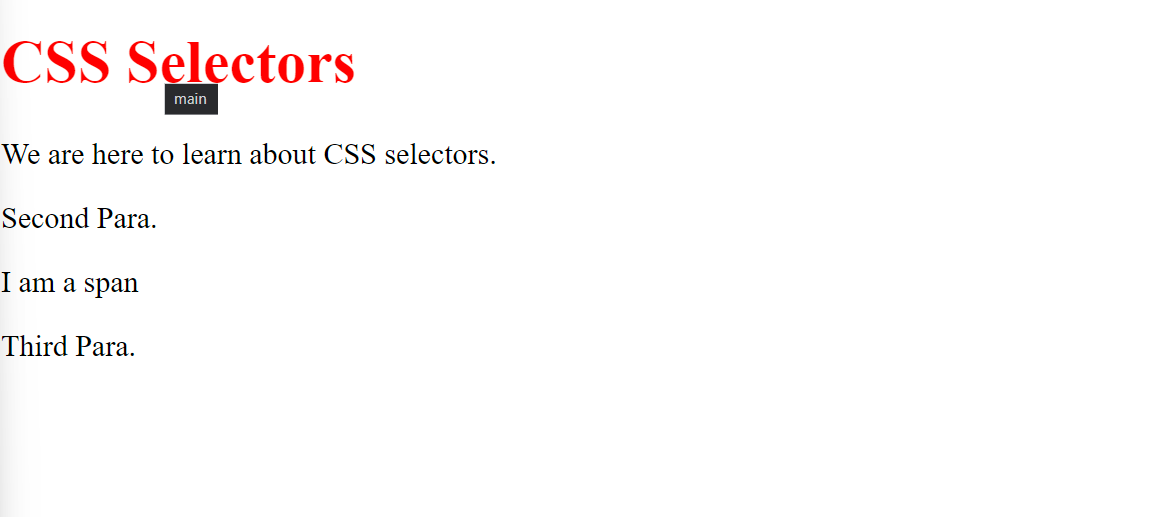
- On mouse over
h1it's color becomes red.
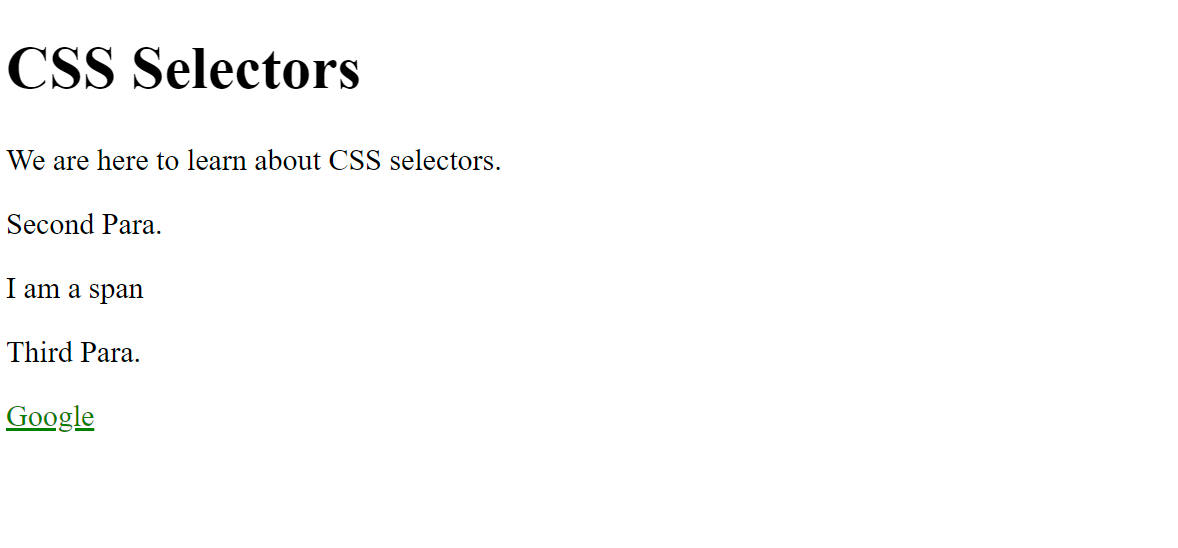
- Visited link will become green.
Pseudo elements
It is used to select and style specific part of element. We use::to separate the two elements.
HTML
<!DOCTYPE html>
<html lang="en">
<head>
    <meta charset="UTF-8">
    <meta http-equiv="X-UA-Compatible" content="IE=edge">
    <meta name="viewport" content="width=device-width, initial-scale=1.0">
    <link rel="stylesheet" href="./style.css">
    <title>Document</title>
</head>
<body>
    <div id="mainContainer" title="main">
        <h1 class="heading">CSS Selectors</h1>
        <p class="description">We are here to learn about CSS selectors.</p>
        <p class="description">Second Para.</p>
        <span>I am a span</span>
        <p class="description">Third Para.</p>
        <a href="https://www.google.com" target="_blank">Google</a>
    </div>
</body>
</html>
CSS
h1::before {
    content: "Hi!! ";
    color: orange;
}

h1::after {
    content: ".";
    color: red;
}
Output
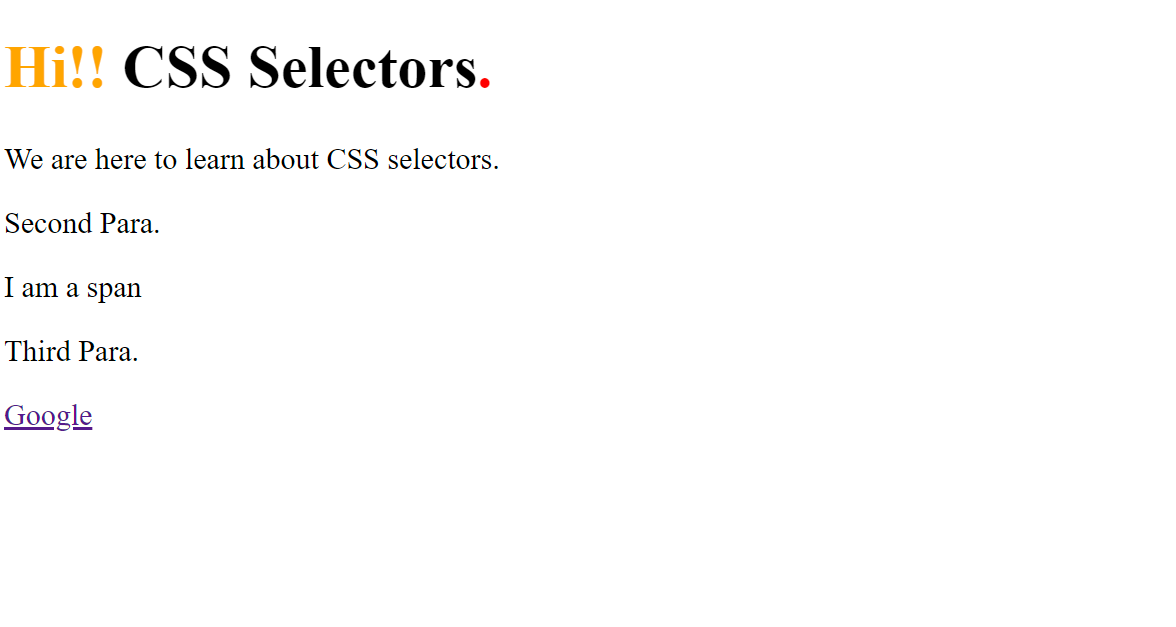
- By using pseudo elements
::beforeadded "Hi!!" beforeh1and::afterused for adding "." afterh1.